











| ○ Acquire continuous or single-point data from force and torque measuring instruments and test stands |
| ○ MESUR®gauge Plus starts and stops models ESM303, ESM303H, ESM750,ESM750S, ESM1500, and ESM1500S motorized test stands1, coordinating motion control and data collection with just one click |
| ○ Real time tabular and graphical data acquisition of load vs. time or load vs. travel vs. time.2 |
| ○ Configurable start and stop test triggers (time, load, number of samples, or distance) |
| ○ Statistical calculations of acquired data. Automatically recalculates for custom data ranges |
| ○ One-click export to Excel |
| ○ Customize test setups for future recall |
| ○ Customize reports and report templates |
| ○ Configure certain Mark-10 gauges and indicators through a simple interface |
| ○ View real time data on a large simulated instrument display |
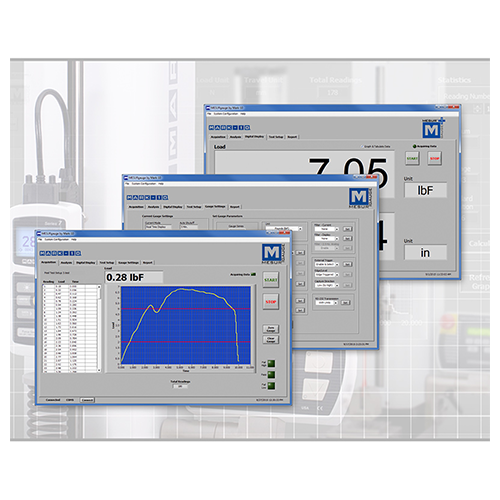
| Start and stop data collection, and view real time data in graphical and tabular formats. With MESUR®gauge Plus, the START button also initiates the motion of an ESM303, ESM303H, or ESM1500 motorized test stand*, consolidating complete test control into just one click |
| Configure test start and stop conditions. With MESUR®gauge Plus, set the initial test stand crosshead direction upon starting the test |
| Sophisticated analysis tools include an x-y cursor, statistical calculations with automatic re-calculation for a customizable data range, export to Excel, and more |
| High and low limit indicators help differentiate between an acceptable sample and a reject |
| View real time load and travel readings on an enlarged simulated instrument display |
| Mark-10 gauge / indicator settings can be configured through a simple interface |
| Easily customize reports and report templates |
| A typical report, containing customizable information fields, statistics, graph, raw data, and date and time |

Important Installation Information:
MESUR®gauge Plus is compatible with Windows 7 and later operating systems, with minimum screen resolution of 1108 x 758. A USB or RS-232C serial port is required to communicate with an instrument. A second port is needed for certain equipment configurations. If USB communication is required, be sure to install the USB driver.
The software may be evaluated with or without instruments present. To evaluate using simulated test data, select “Simulated Data” under the System Configuration menu. For detailed instructions,
consult the user’s guide by clicking here.
When the download has completed, navigate to the zipped folder, extract the files, then double-click the file “setup.exe”. Follow the prompts to complete the installation.
Refer to the user’s guide for additional installation instructions.
Mark-10 USB Driver – Mac (note that all above software applications can only run in Windows mode)


Reviews
There are no reviews yet.